Riggott IMS is a cloud-based smart app that allows your company to handle, control and automate all your business information. This uniquely designed system will strengthen; help you bring onboard new processes.
Quotations are the start of your communication with clients. Getting the quote right here improves the job process to delivery and invoicing.
Overview
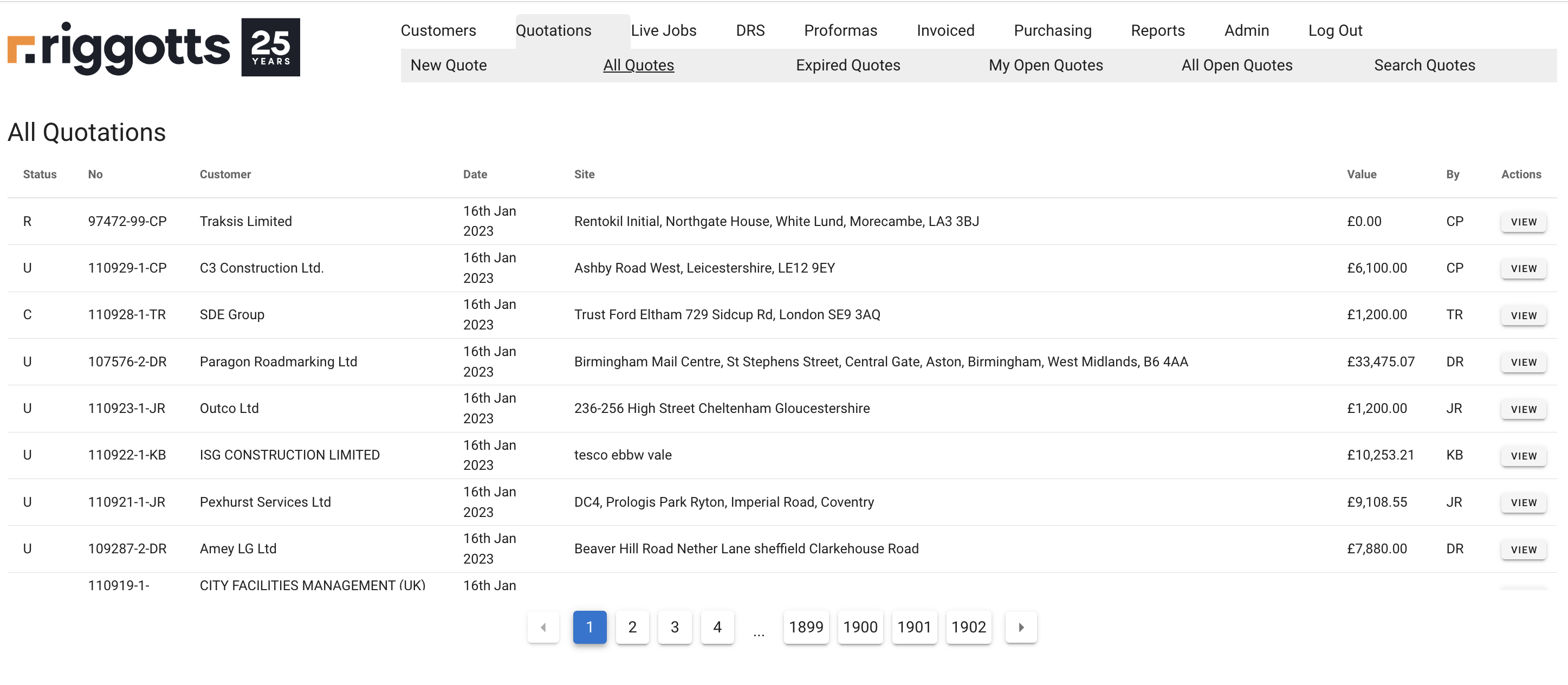
The above view gives information and access to the following:
- My Quotes
- List Quotes
- View My open quotes
- View all open quotes
- Search quotes
Creating a new quote
Click New quote, which will take you to add a new quote.
Enter the name of the customer and select from the list of customers.
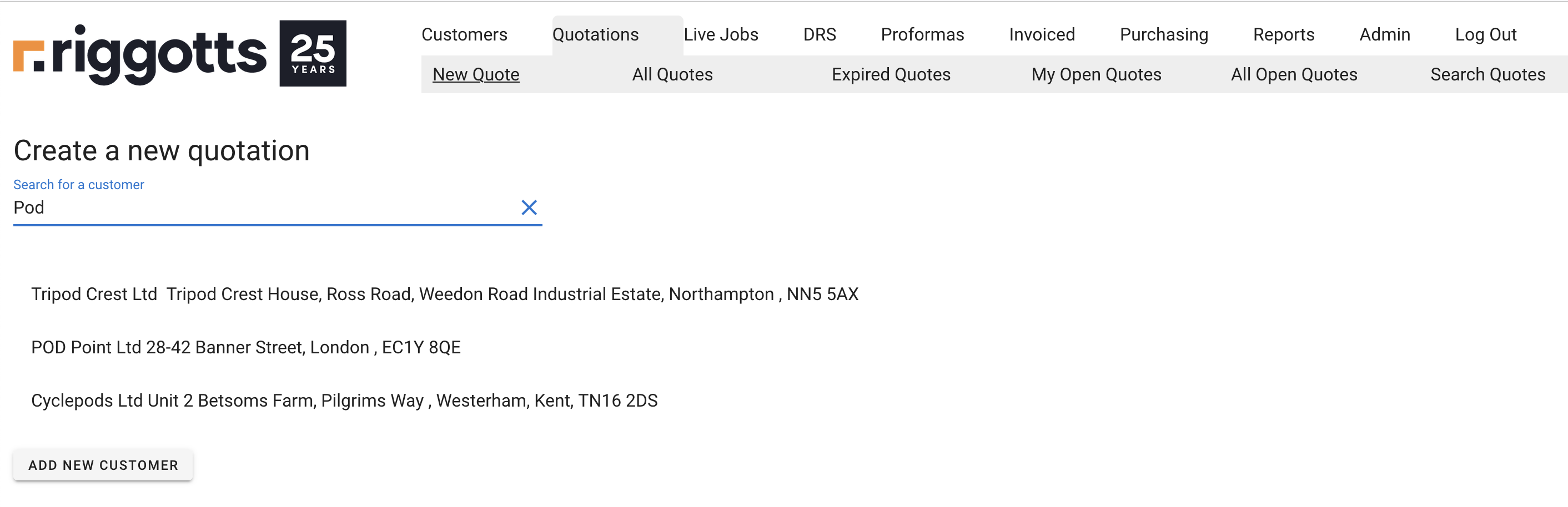
Select customers, and the IMS will ask questions, including a selection from a pre-determined list of options.
Note: All fields must have a selection (none left blank) and that the data entered is accurate to the customer and quote, as these selections determine the further process in the IMS, such as Invoicing.
You can add a new customer – Click the ‘Add New Customer’ button and follow the on-screen instructions.
Saved quote
Once you’ve added all details, minimum charges and BOQs (Bill Of Quantities), click Save from the top left-hand side, and you will see the updated overview.
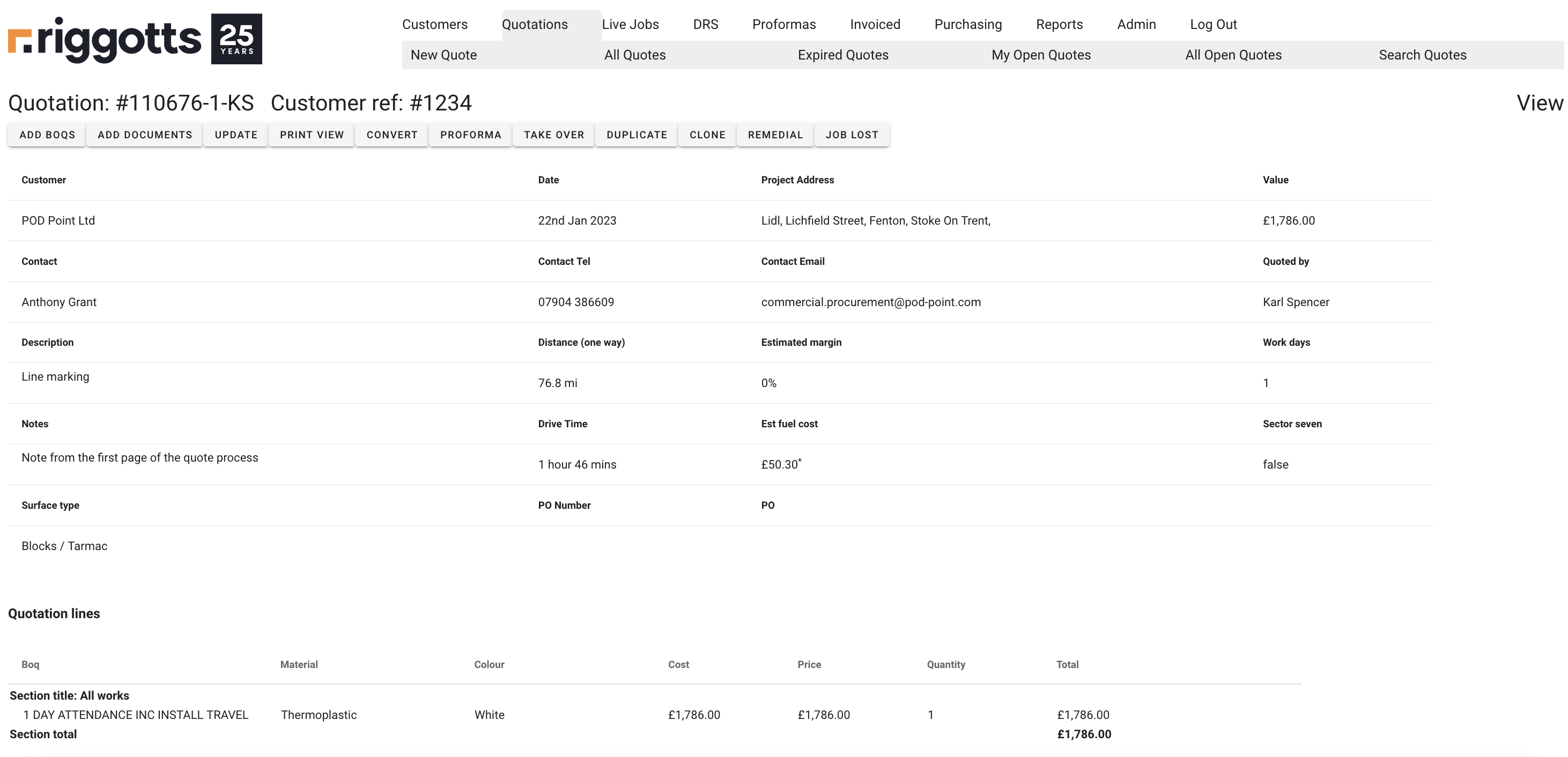
Add documents to your quote.
Adding documents will allow management, planning and the crews to understand the work better.
Click ‘Add Document’, and you can drag and drop or click to browse folders to add documents.
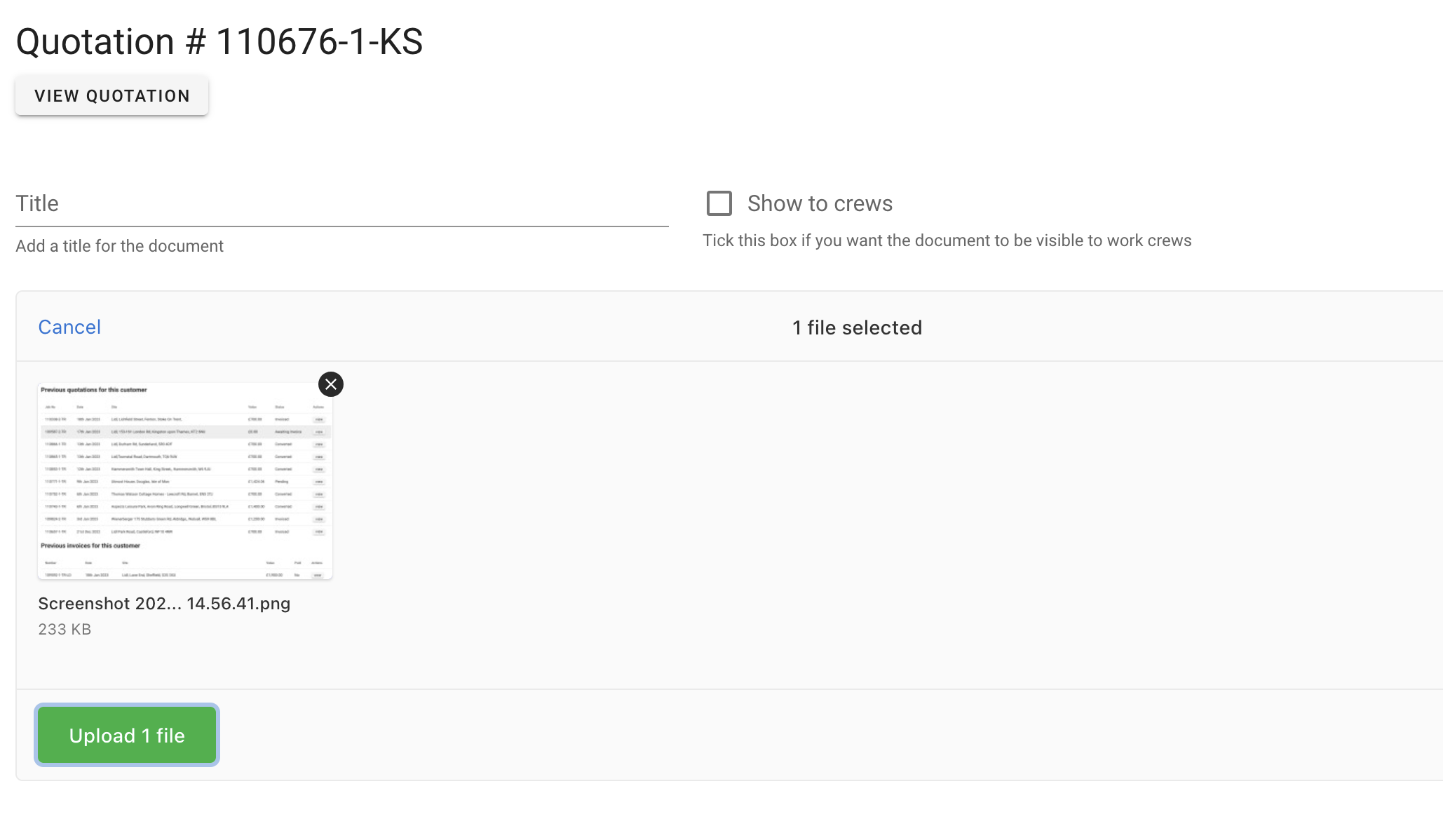
Once added and named, click Upload, and the document will be added to the quote.
Returning to the quote overview, you will see the added documents at the bottom of your screen.
Print View
Use the print view to preview your quote in its entirety.
Any notes added in the building to your quote view will show below your list of BOQs.
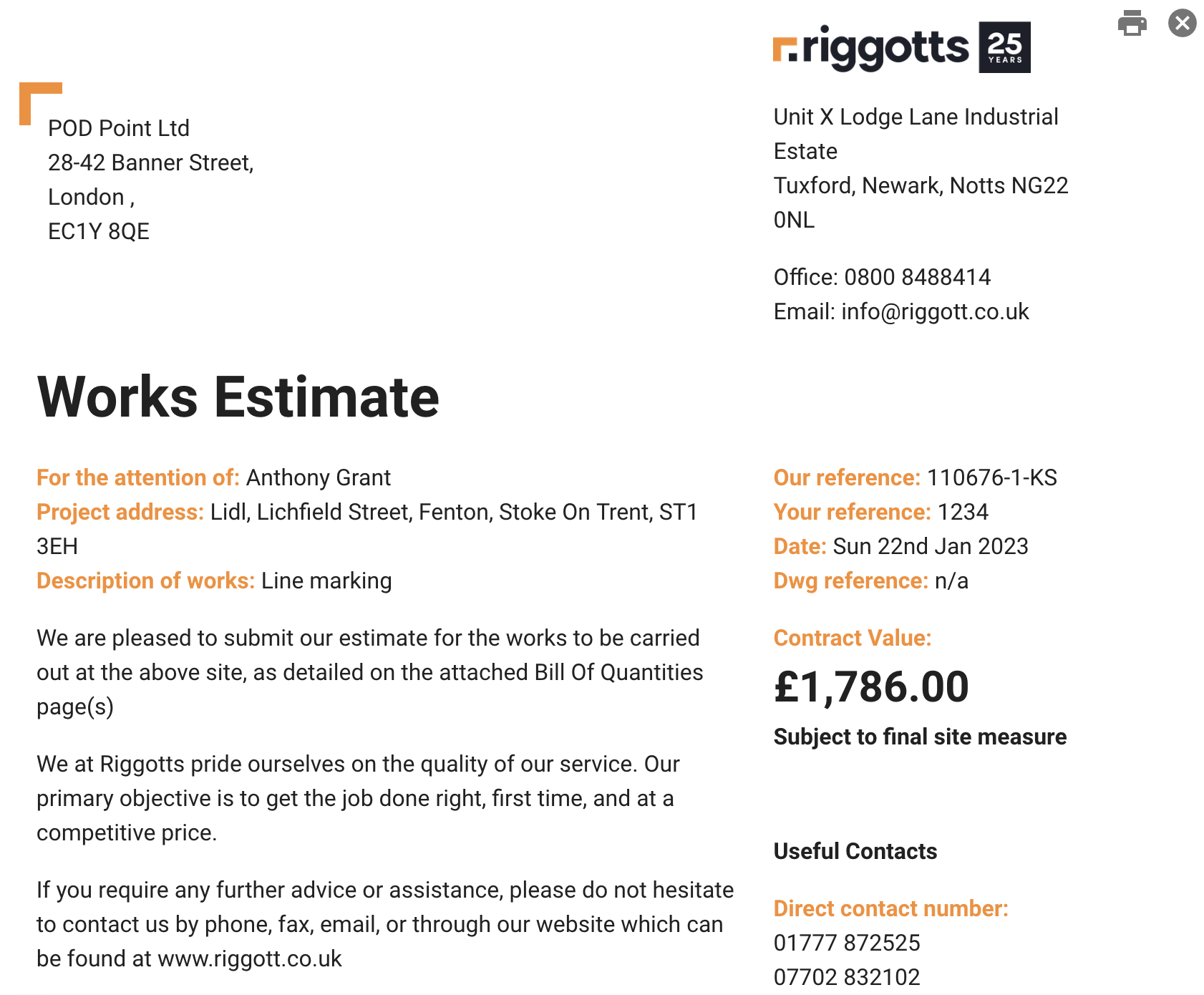
Converting your quote
The ‘Convert’ button on the quote overview page converts the quote to a live job.
By clicking Convert, you now need to add more job information used on the job card such as site contact, site address and postcode, special instructions.
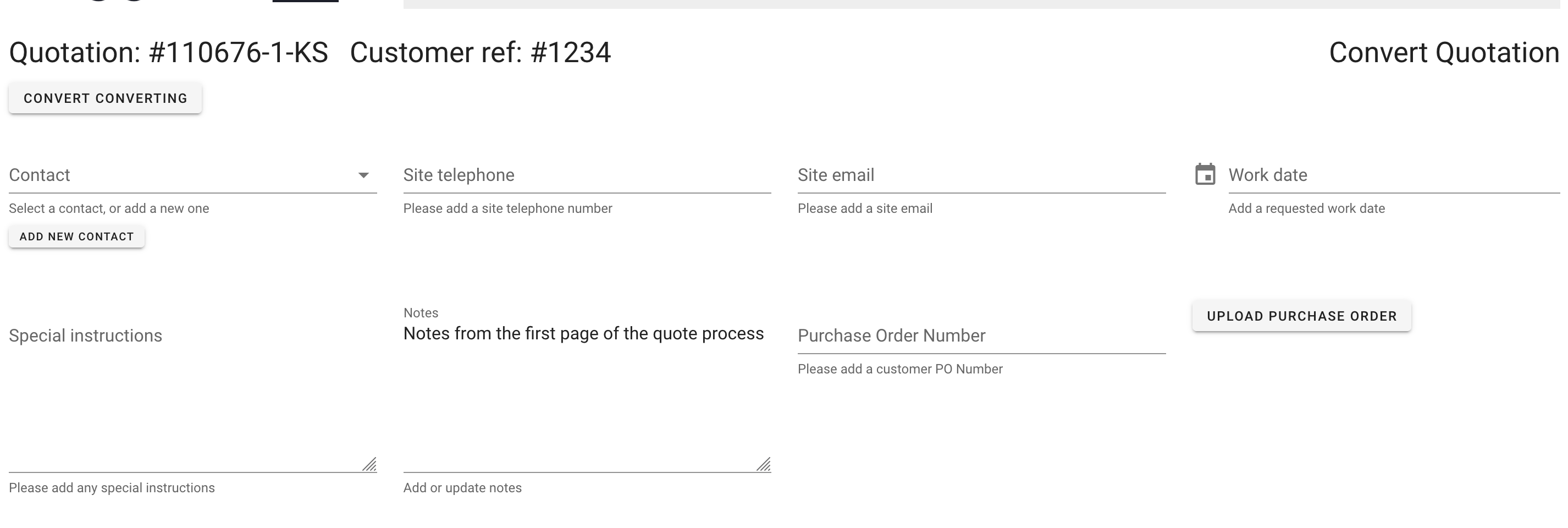
You can add a Purchase order No and upload a copy of your Purchase Order which will be used as the job progresses through the planning phase an to invoicing.
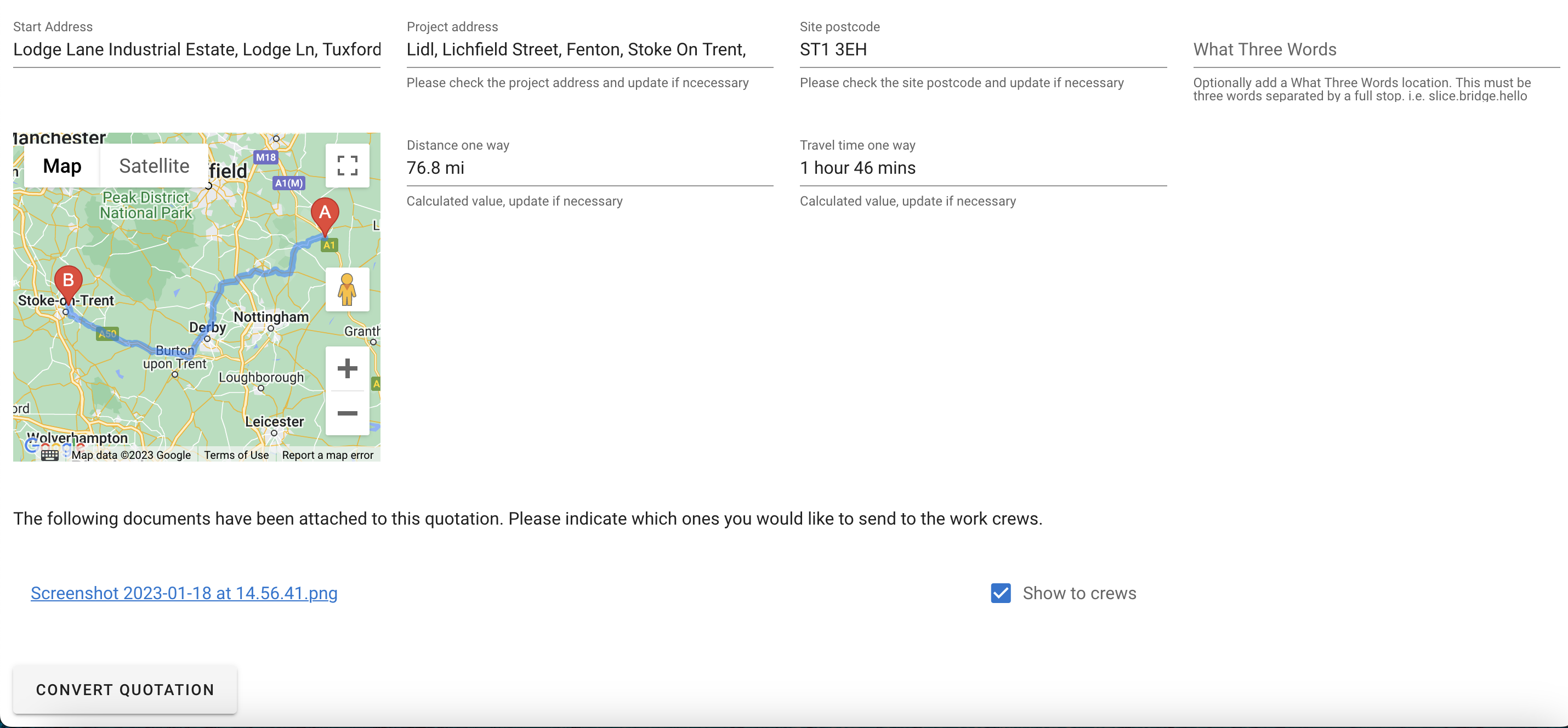
Lastly, once all you information is entered, you can Convert by using the ‘Convert Quotation’ button at the bottom left of the page.
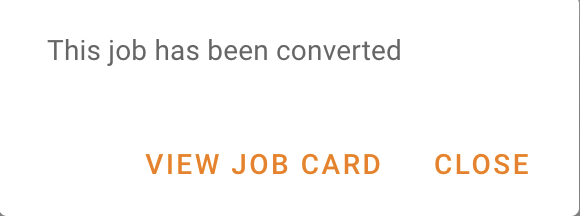
If all is ok, then click Confirm Job in the pop up module and your job is now converted.
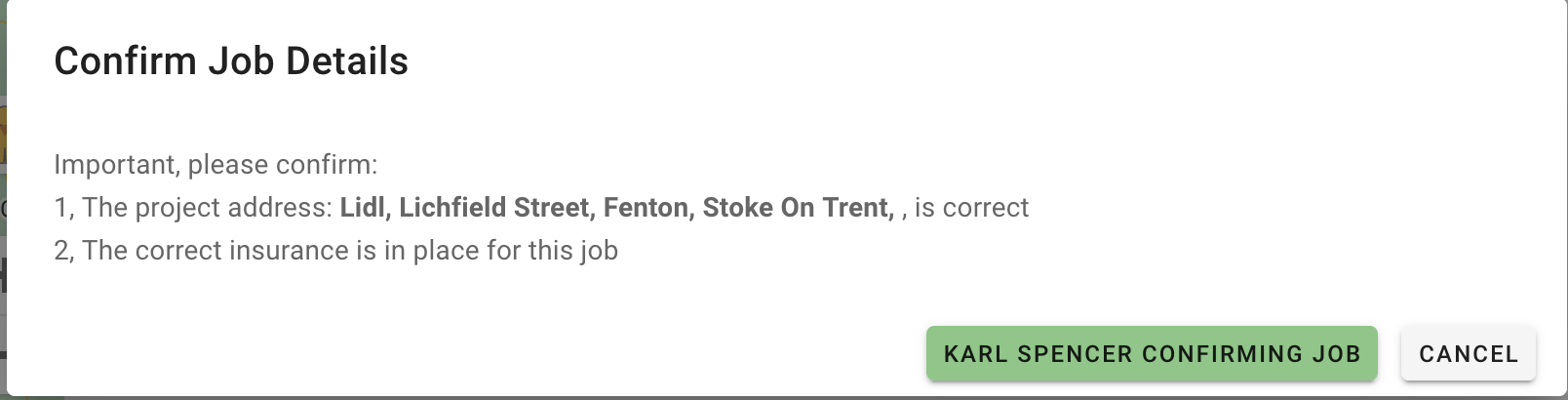
If you click Cancel, you will return to the converted overview page to edit as required.
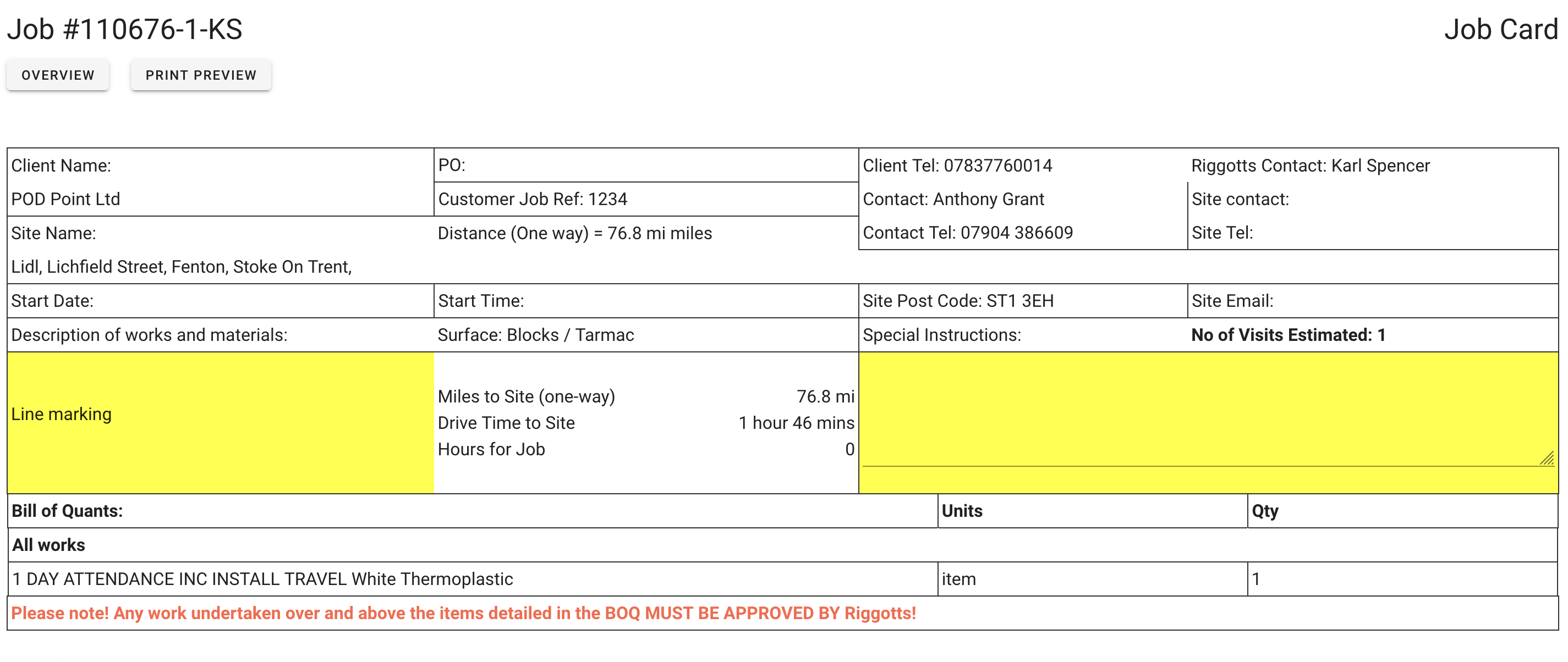
When you click Confimring Job, the IMS will check the customers Sage Ref and credit limit against the current balance in Sage. Assuming ght ecusotmer has a Sgae Ref and the value of the quote will not exceed the customers credit limit, the quote will be converted. You will then be able to view and print the job card.
Live Jobs
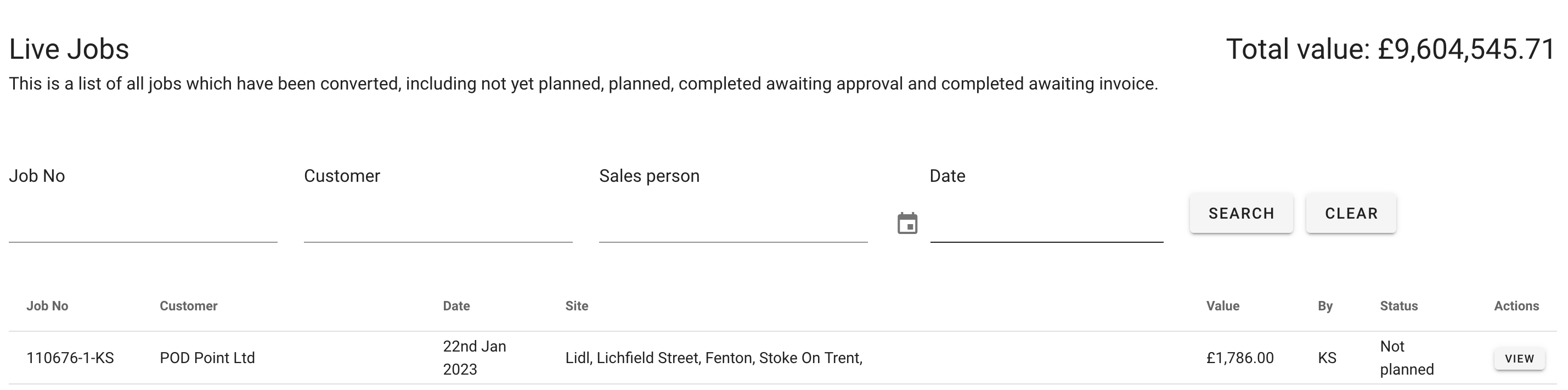
Your converted quote will now be under the Live Jobs list – Showing the newest converted jobs first.
Proformas
A proforma invoice is a quote in Riggott invoice format that must be paid in full before work will be scheduled. The planning department can then schedule and complete the work after full payment.
Use this facility if the customer is new with no account or credit with Riggott & Co Ltd.
Google Address Finder
The IMS uses the most up-to-date Google Maps API, ‘Application Programming Interface’.
The address finder built into the quotation tool requires as much information as possible to calculate the route and distance accurately.
If you do not type your site’s full address, you may risk using Google Maps to highlight a similar address in another town or city.
Example:
Under the project address, type ‘park mews’, and under the postcode, type ‘ng5 6sy’; Google Maps depending on your browser settings and cookies, will send you to either Sheffield or Scotland, 210 miles away,
See the below image
is-style-default image-border
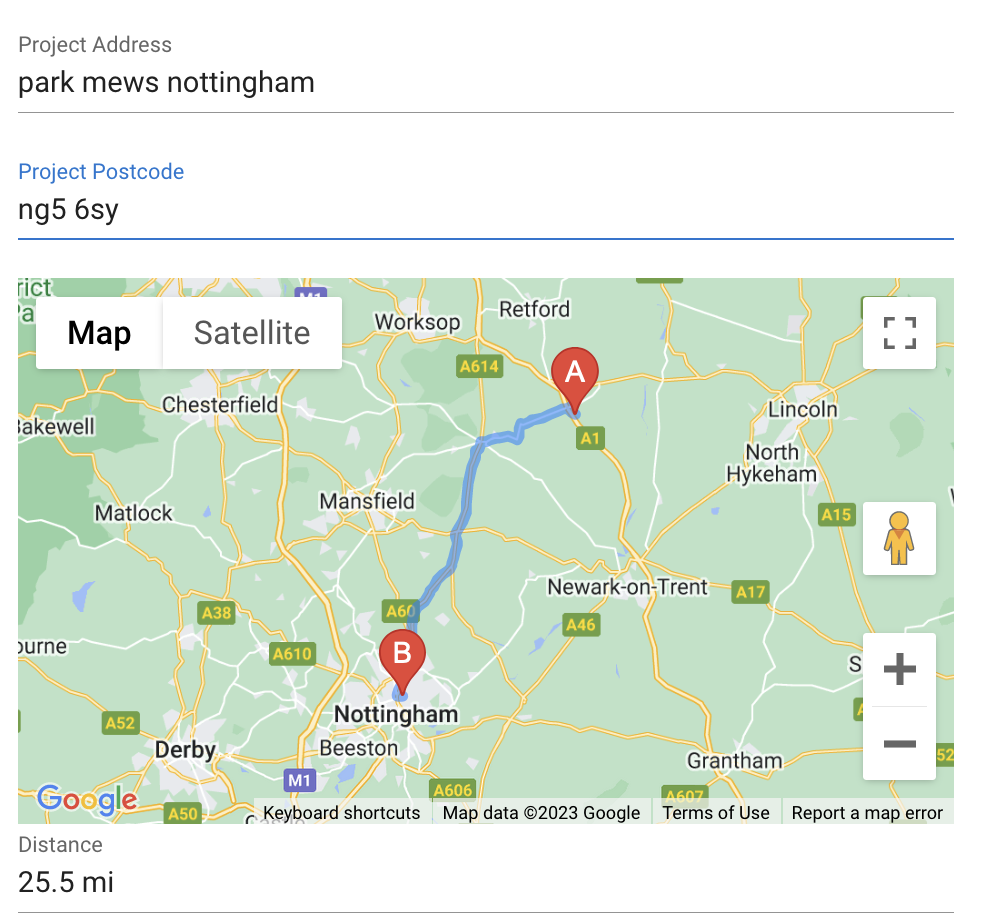
But, if you type park mews Nottingham and postcode ‘ng5 6sy’, then Google Maps will know to search Nottingham for Park Mews and connect show Park News Nottingham 25.5 Miles away.
See the below image.
Remember always to enter as much information as possible and accurately as possible.