Riggott IMS is a cloud-based smart app that allows your company to handle, control and automate all your business information. This uniquely designed system will strengthen; help you bring onboard new processes.
The Main menu gives you access to the Purchase order Dashboard to view current and historical Purchase orders.
The default view is Purchase Order Open, i.e. Open and Authorised.
The view also provides a full list with page tabs at the bottom of the page.
Use the search facility to locate the purchase order of your choice.
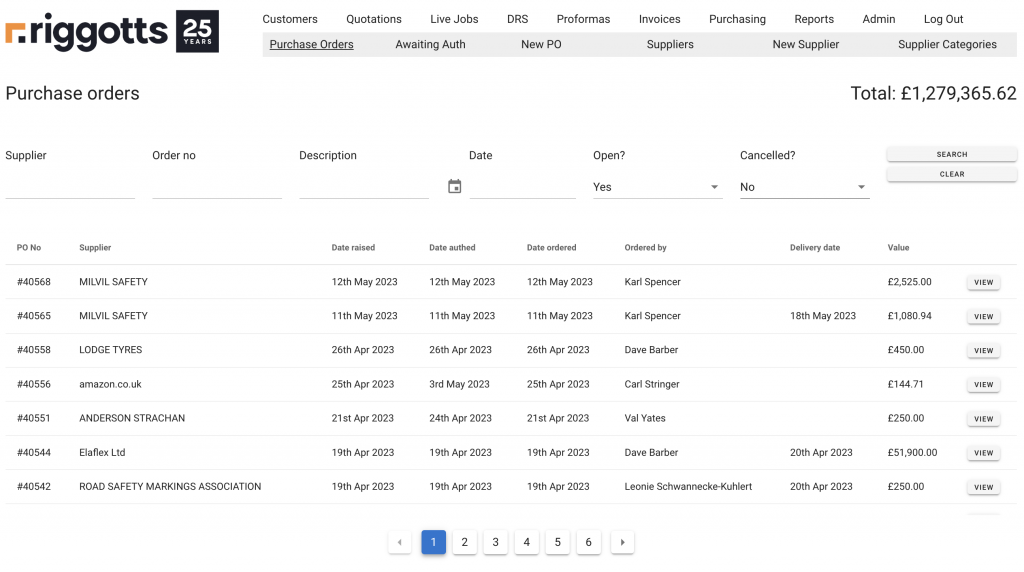
Use the date selection tool to filter multiple-month selections i.e. 3-month date selection along with the filter ‘Yes’ will provide you with a view of all open orders for the last 3 months.

New Purchase order
Click New PO to create a new Purchase Order. Type in 3 characters to search all suppliers.

Click on the supplier to then access the data input section as shown below.
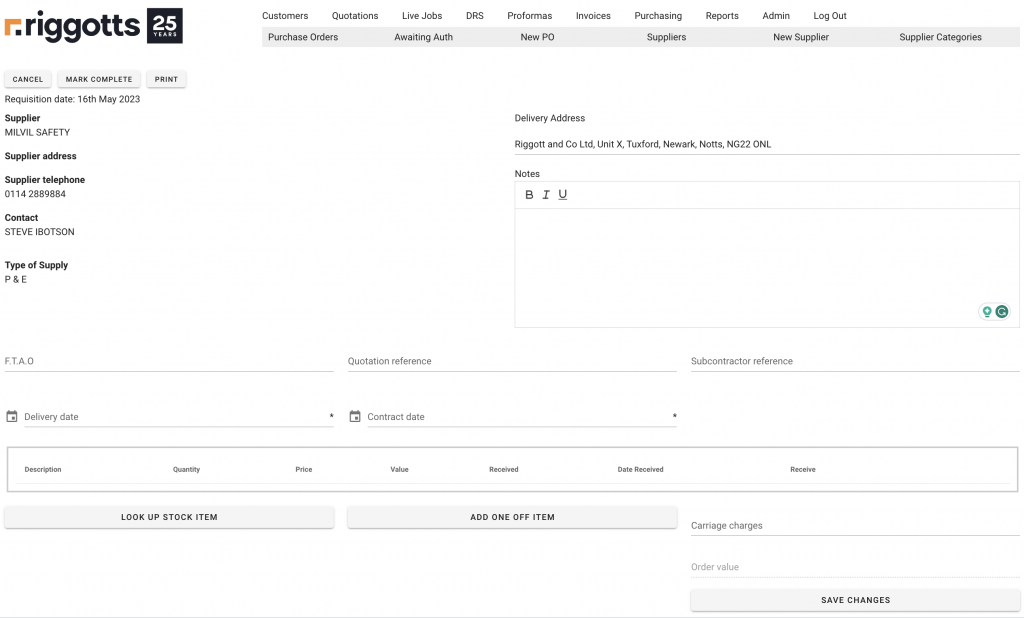
Supplier information is shown on the left-hand side and the control button allows you to:
- Cancel
- To cancel this PO
- Mark Complete
- To Mark this PO as complete
- Print
- Print the PO to your local printer or PDF to email.
You can then enter specific information such as:
- F.T.A.O
- The name of the person the order is attended for
- Quotation or subcontractor ref
- The suppliers or sub-contractors quote reference
- Delivery and contract date selection
- Select the required date.
- Notes section
- Add any specific notes to support the purchase order.
Adding a stock or unique item
Click Look up stock item to add a stock item to the PO
Type in 3 characters to search for an item – Below shows a stock item Hard Hat. Price is automatically added.

Adding a one-off item, click ADD ONE OFF ITEM and enter the item description, quantity and price.

The Purchase order now has items and the authorise button will appear.
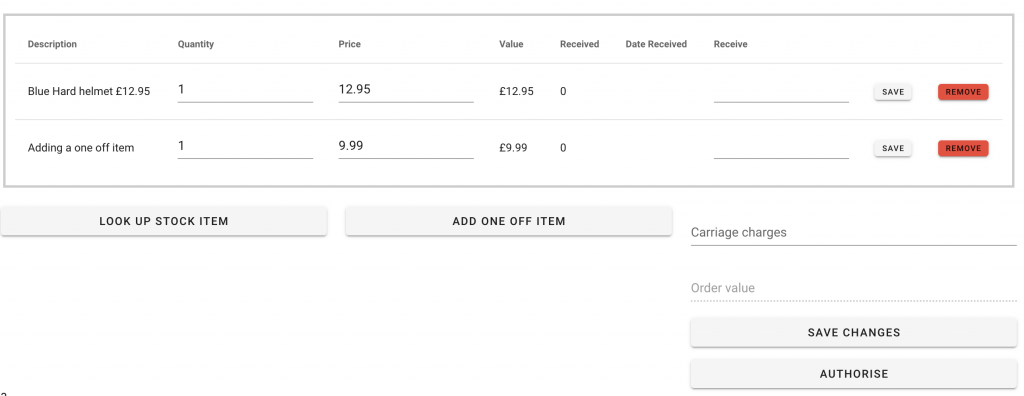
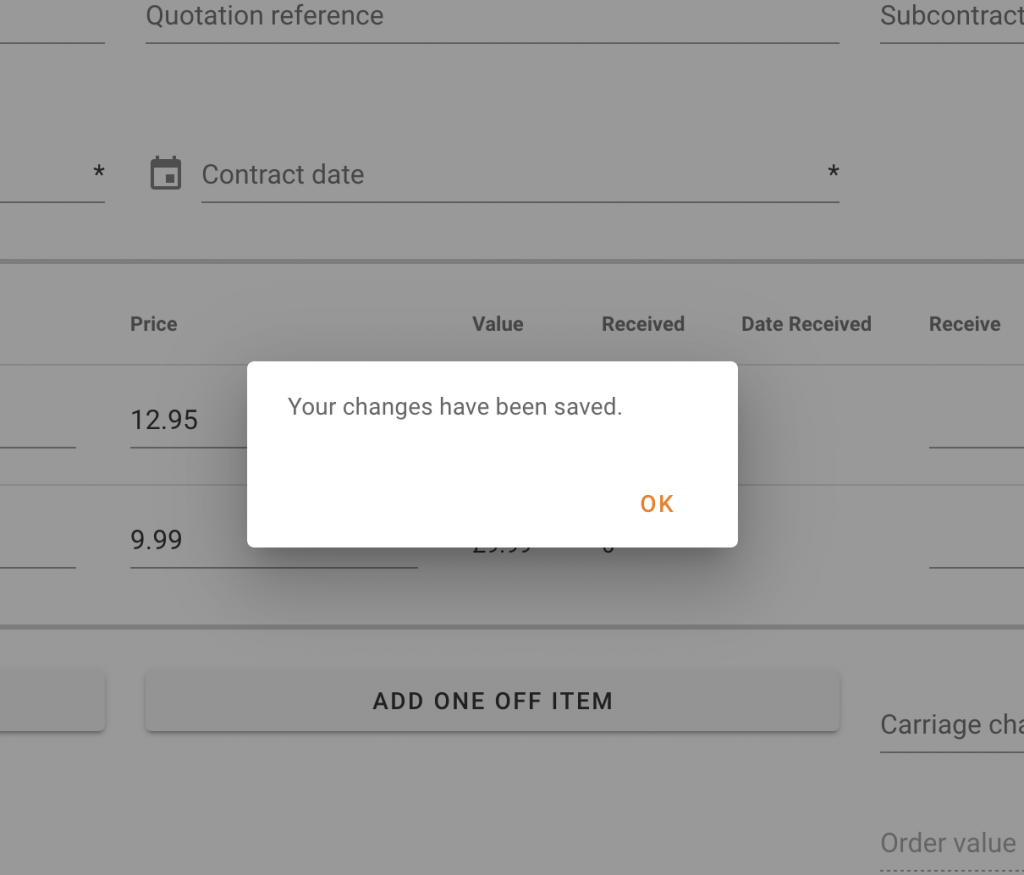
Click save to save you order
Authorising an Order
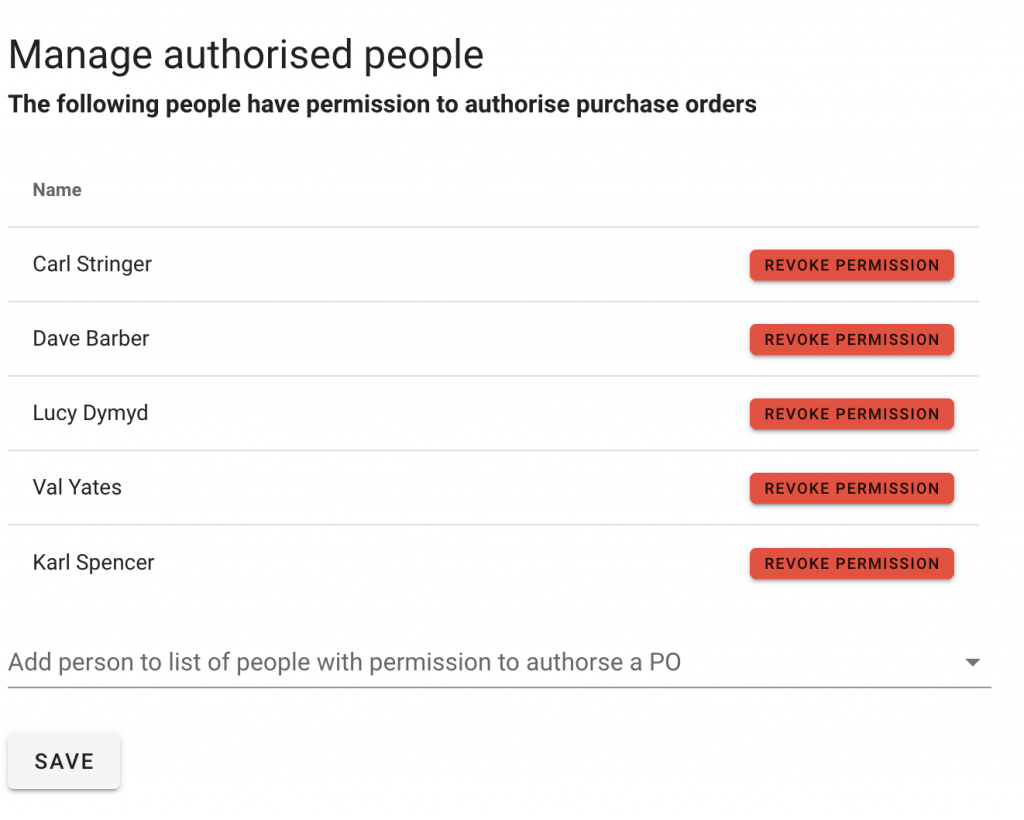
Users authorised to authorise an order are selected and shown under Admin and then Authorisers
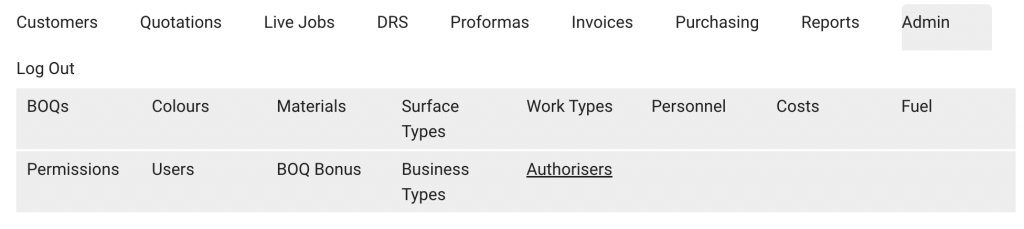
Click Authorisers reveals the Authorisers page.
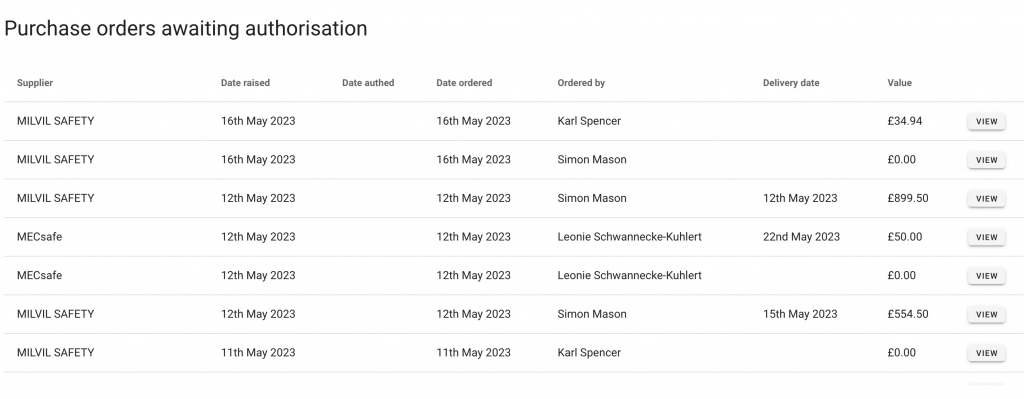
Purchase Order Awaiting Authorisation
From the main Purchase order menu click ‘Awaiting Auht’ to see all orders which require authorising. The below view shows eight PO’s awaiting authorisation.