Riggott IMS is a cloud-based smart app that allows your company to handle, control and automate all your business information. This uniquely designed system will strengthen; help you bring onboard new processes.
The main Invoice menu lets you view all invoices, applications, consolidated invoices, credit notes, and search invoices.
The page view defaults to ‘All invoices, ‘ meaning the list shown is a collated list of:
- Invoiced
- Draft invoices
- Applications
- Search Invoices
- Credit Notes
- Consolidated invoices
See below image
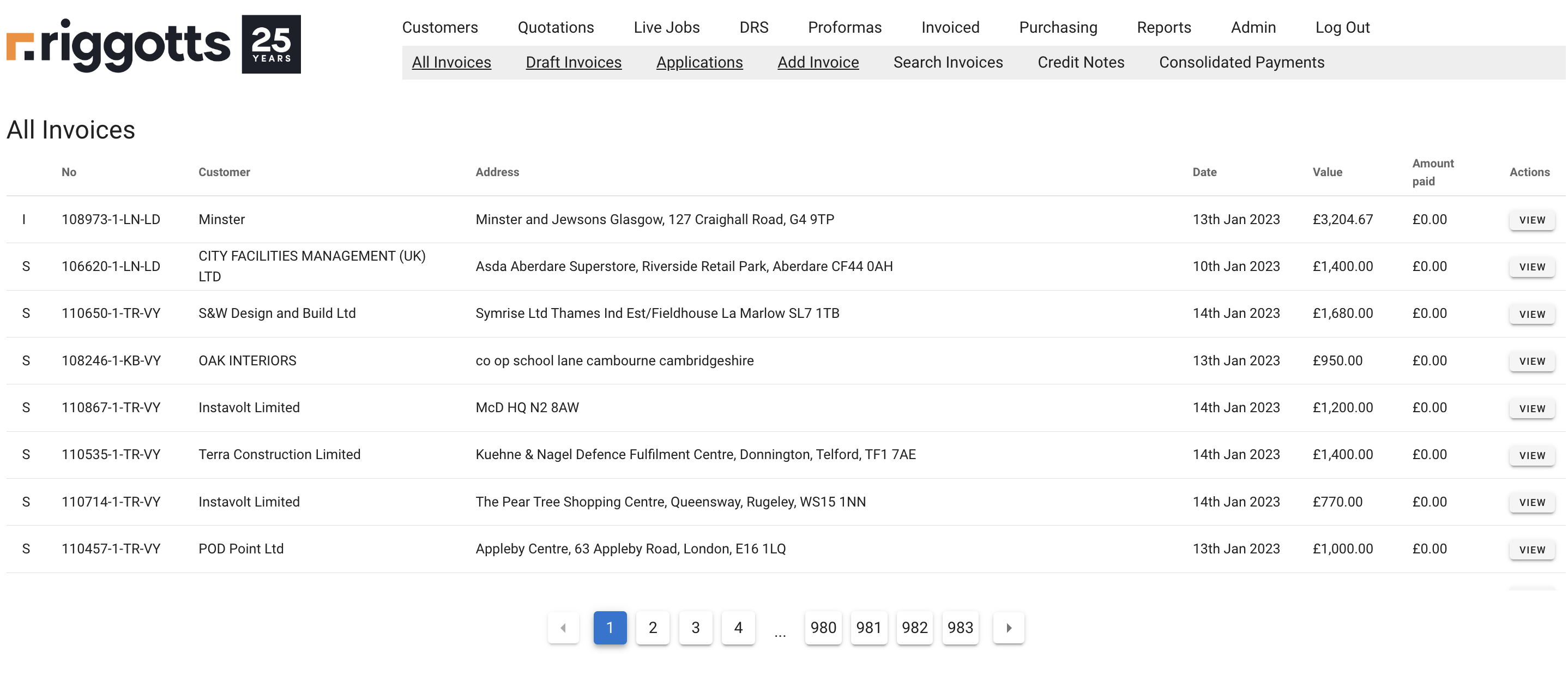
On the left-hand side, you can see the letters ‘I’ and ‘S’, meaning ‘Invoiced’ and ‘Sage’, respectively.
Use the ‘View button on the right to access the invoice and other options.
Search Invoices
The search facility allows you to search
- Customer
- Sage Ref (Sage Reference)
- Inv No (Invoice Number)
- Salesperson (Enter initials such as DR for Darren Riggott)
- Invoice Date
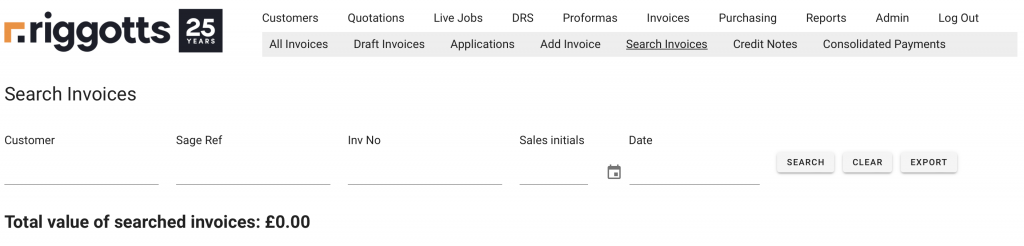
Searched salesperson and date
The below view is the result of a search of DR and all days in January 2023.
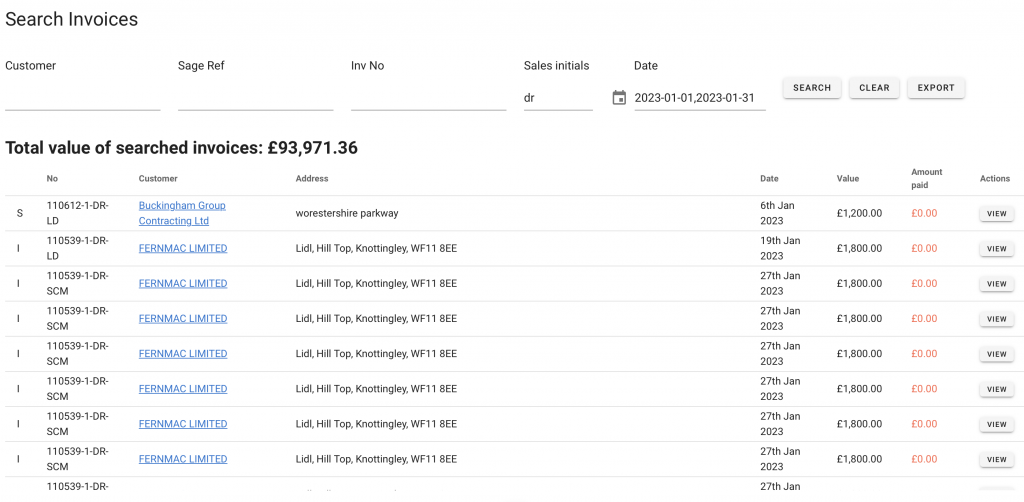
Export Invoices Search
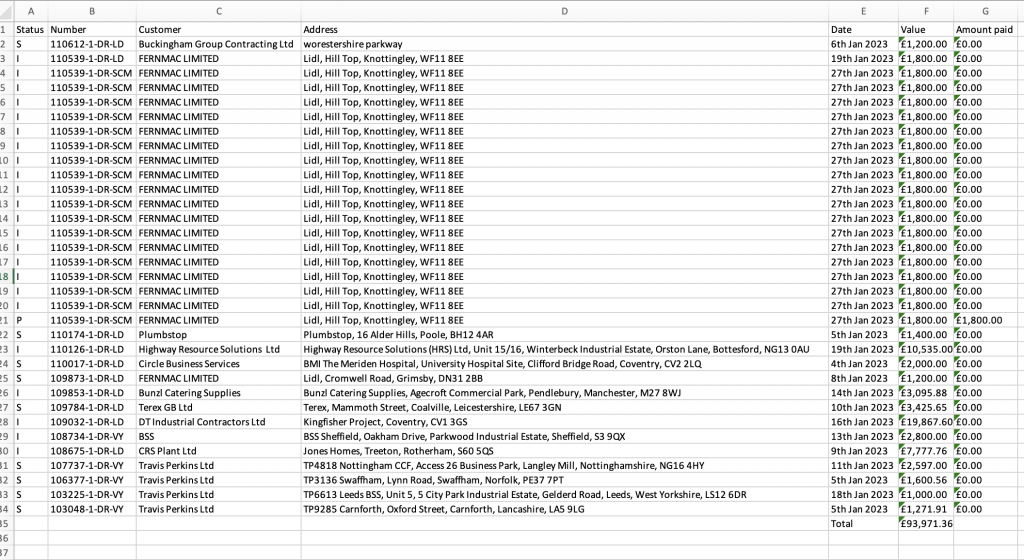
The view includes the option to export your search to Excel (csv (Comma separated values))
Click export, and the csv file will automatically go to your browser downloads folder – Please note if this is the first time, you may need to click allow based on your browser settings.
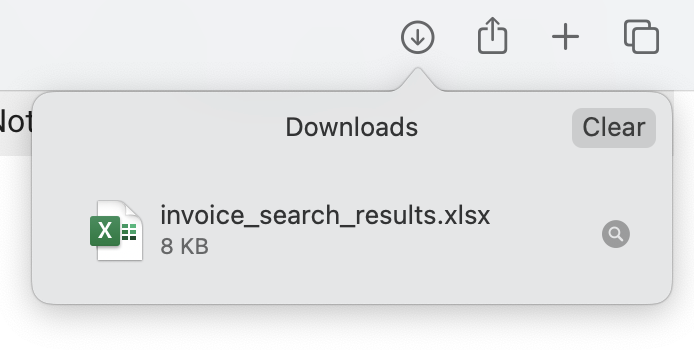
Click to open the file, which will automatically open your chosen file opened programme – in this view, it is xlsx.
Invoice View
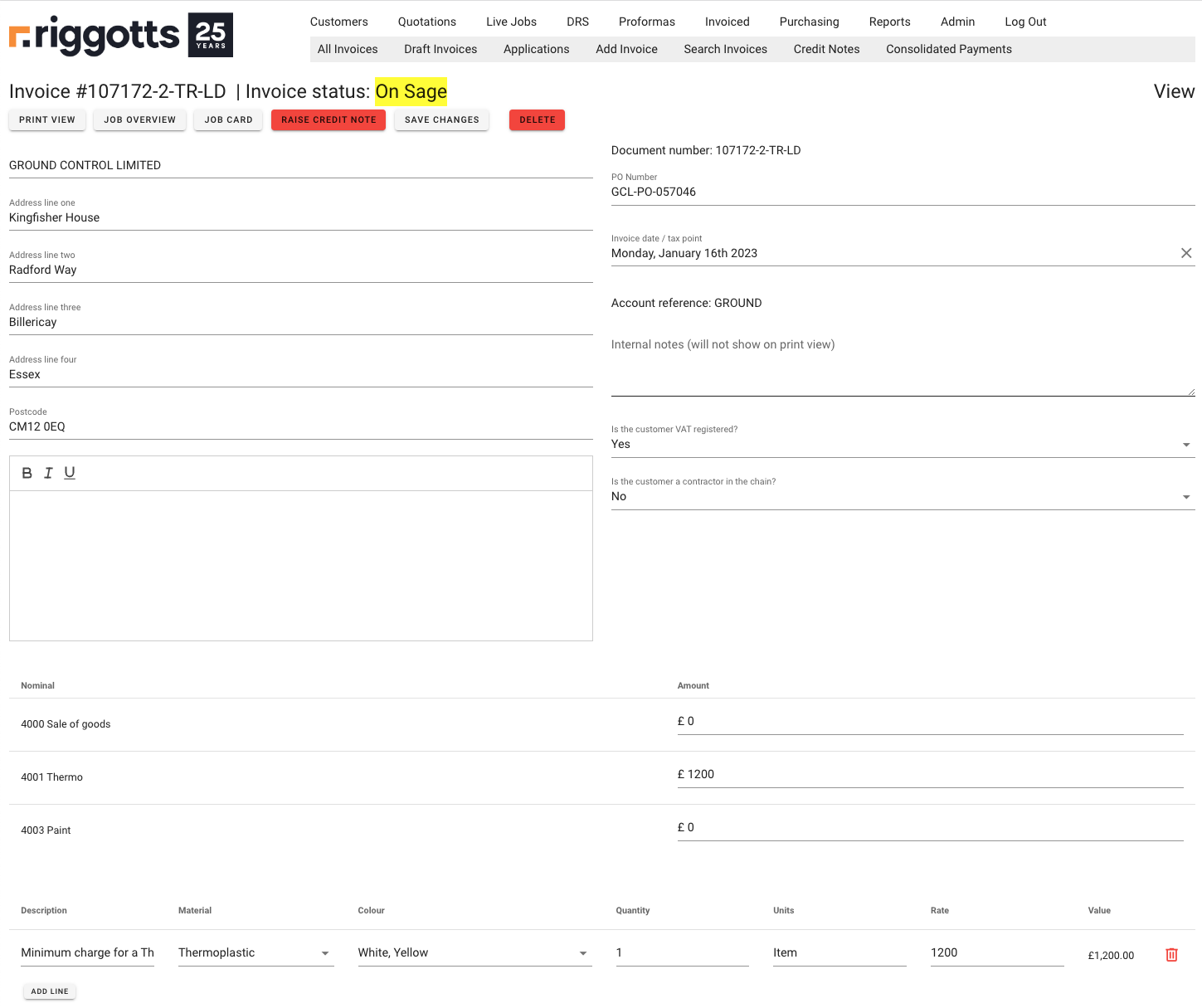
This view gives you access to the following:
- Progress to Draft invoice and then onto the final invoice and posting to Sage.
- Print view – View a PDF version based on current data and information.
- Job Overview – Access to all job details, BOQs from the quote, BOQs from the DRS and links to view DRSs. Job costings and DRS photos.
- Job Card – View the job card.
- Raise Credit Note – Full access to enter a credit note and edit as required.
- Save Changes – To save any changes. The button is only shown when an update is made.
- Delete – Delete invoice. This does not update or delete on Sage.
Editing an invoice
Full editing of an invoice will be available depending on permission and your right.
You can amend any item by clicking on the data cell, clicking selection, altering figures etc.
You also have the option to add a new line (Add a line box below the last line) or delete a line (use the Bin located on the far right-hand side).
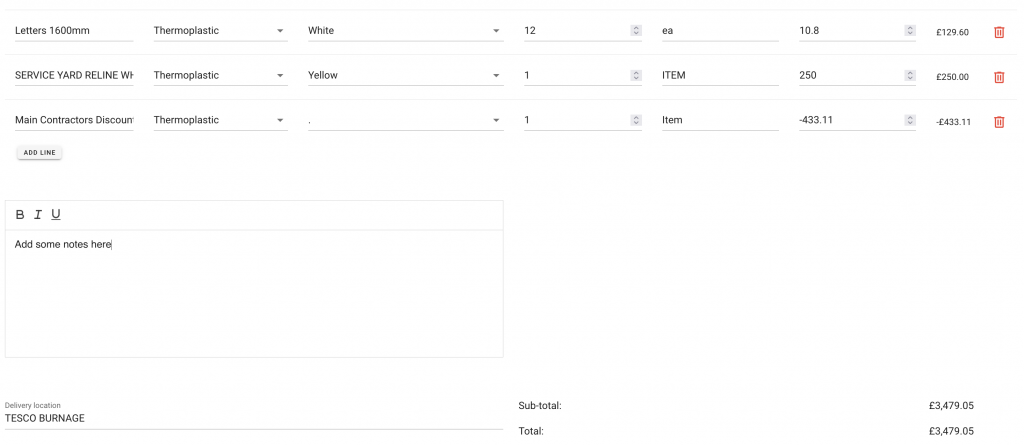
As the above image shows (last line item), you can add a line and enter minus values when a discount is applied. All totals are automatically updated.
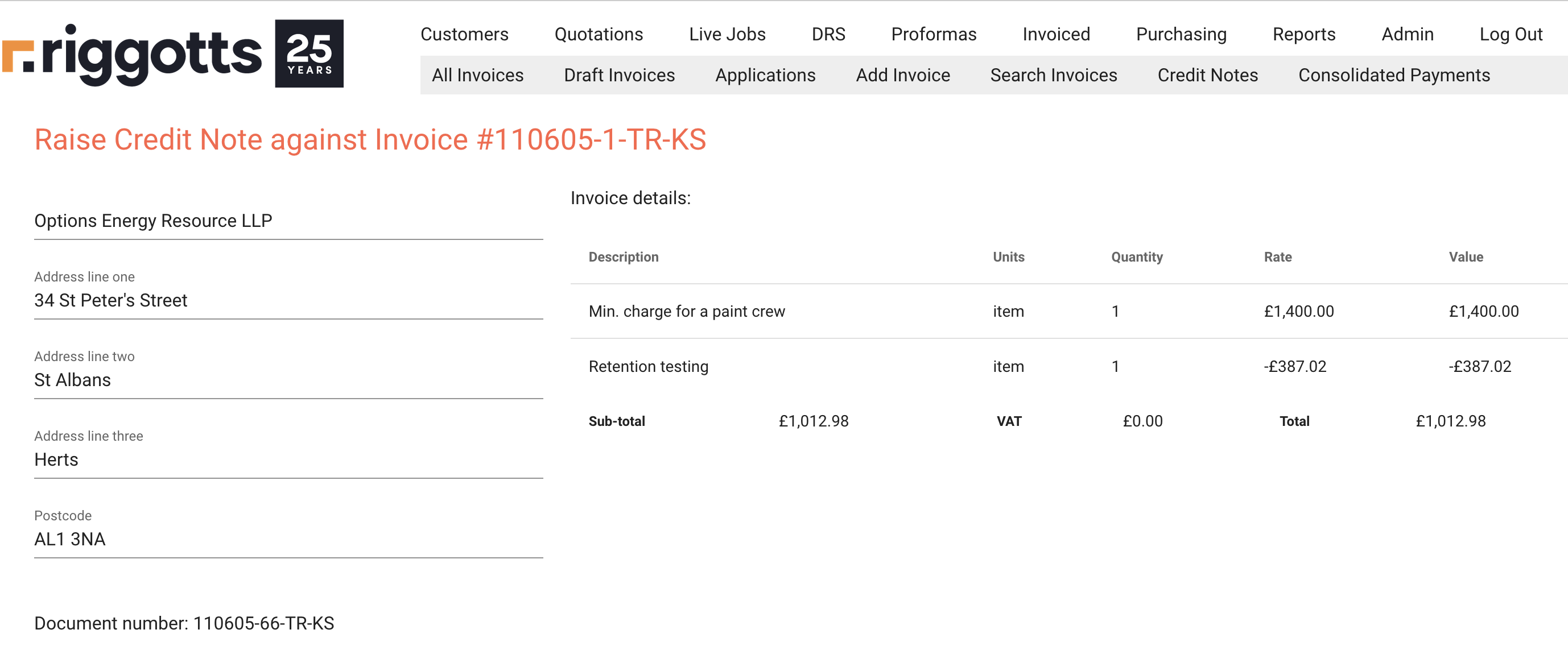
Credit Note
Accessing Credit Note allows editing, entering new details and saving any changes before printing and sending to the customer.