Riggott IMS is a cloud-based smart app that allows your company to handle, control and automate all your business information. This uniquely designed system will strengthen; help you bring onboard new processes.
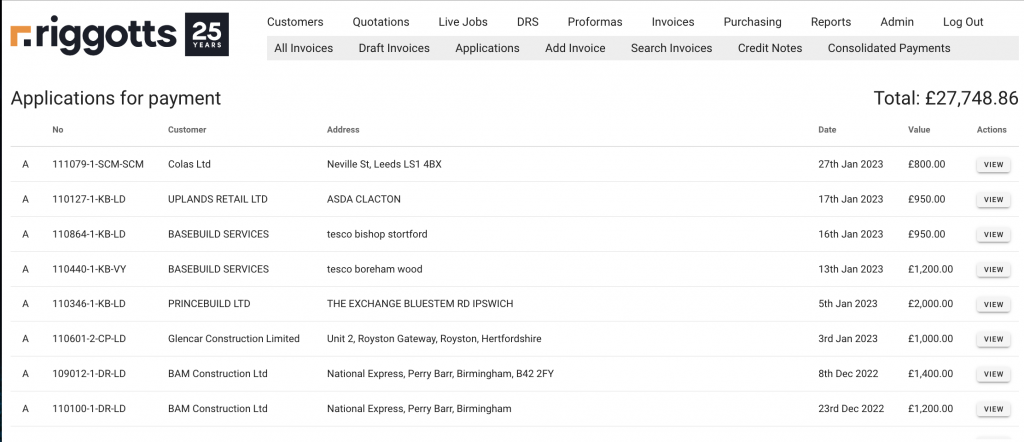
The main Invoice menu lets you view all invoices, applications, consolidated invoices, credit notes, and search invoices.
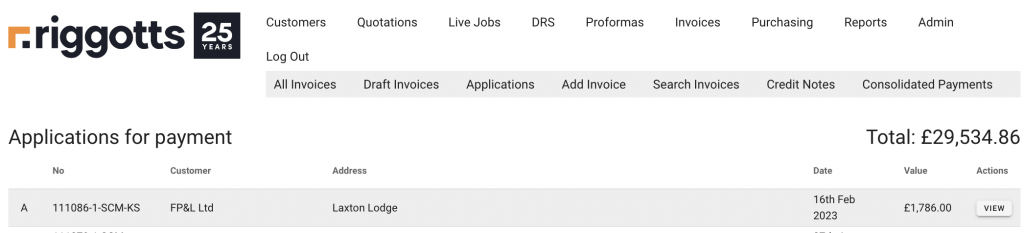
The page view defaults to ‘All invoices; if you click applications, the IMS will return a full list of applications completed in the IMS.
Creating an Application
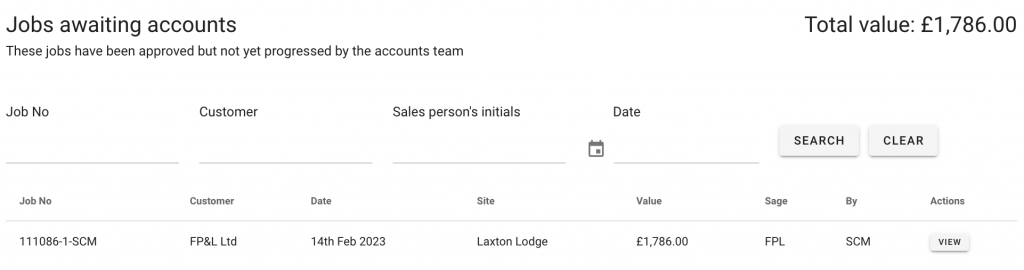
From the ‘Awaiting Accounts’ Menu – i.e. the job is complete and can be progressed to invoice or application, click the job ‘View’ button on the right-hand side.
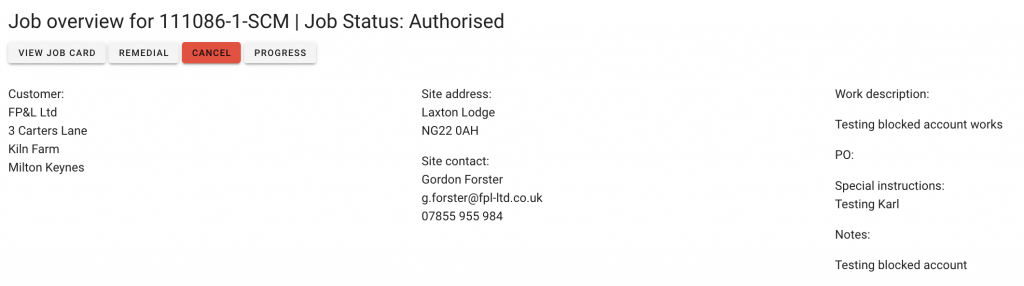
You will then be taken through to the ‘Job Overview’ where you can check details and progress to Application or Invoice.
If the job information is correct, when you click ‘Progress’, you will be taken to the job progress page where you can select Application or invoice from the right-hand selection.
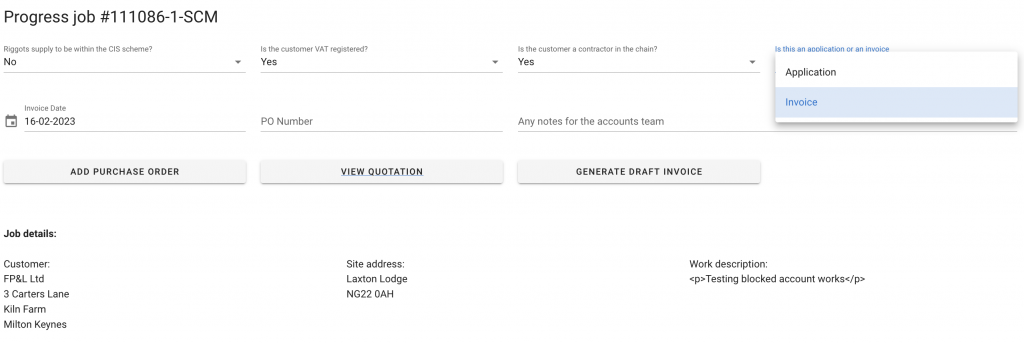
Select ‘Application’, then click the button labelled ‘Generate Application.’
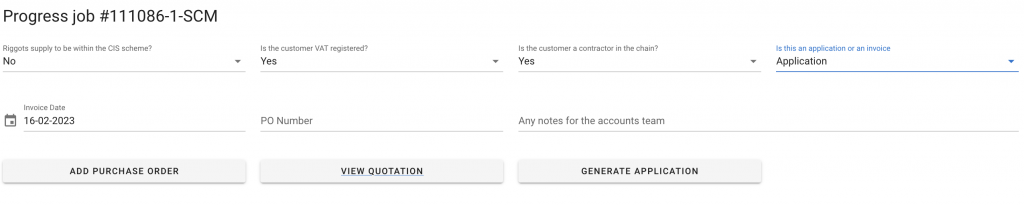
The Draft Application has now been created – See the image below.
The Application value is not posted to Sage and is only recorded in the application list and customer history.
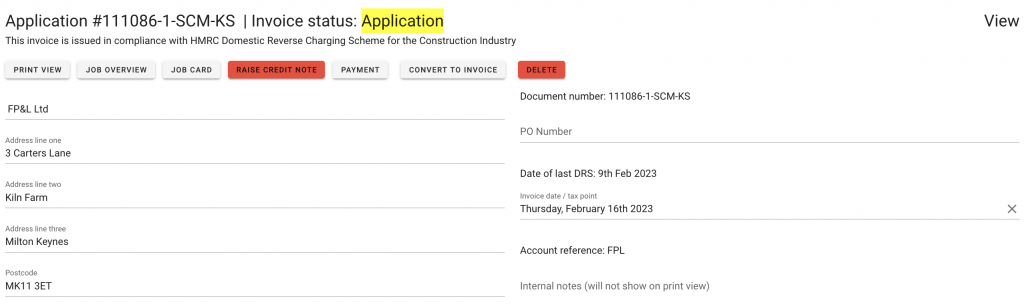
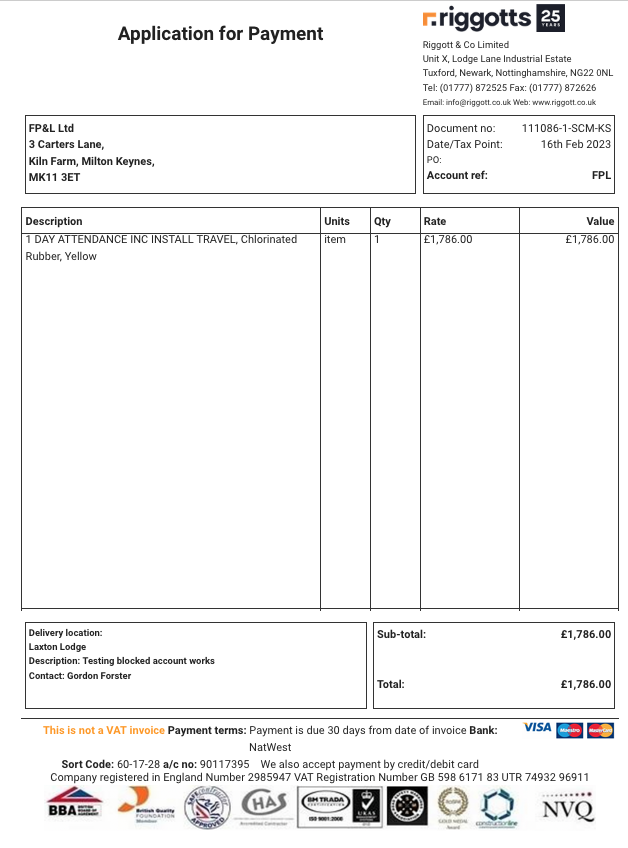
Click “Print view’ to view, then print to a local printer or PDF.
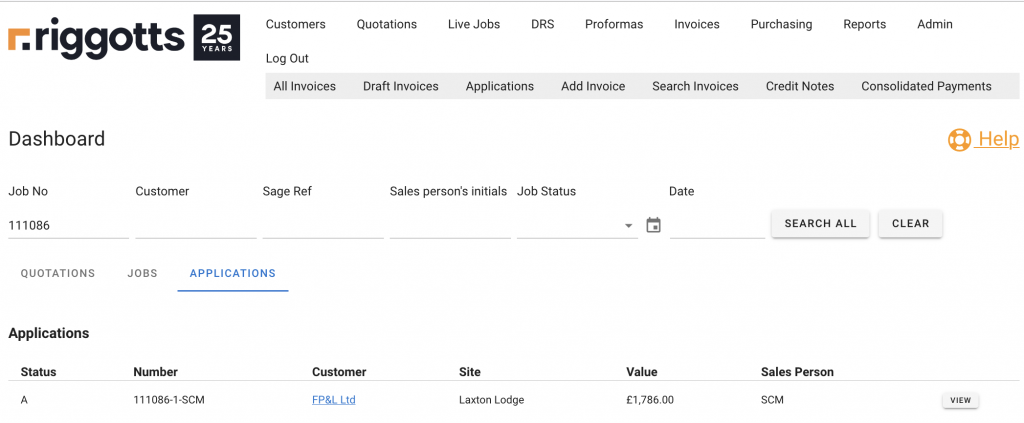
The Application will now be shown in the Application List.
Using the Main Dashboard Search facility, by clicking the Riggott Logo, you can search the specific job and Quotations, jobs, and Applications associated with that job will be shown. and the status will be shown as an ‘A’ for the Application.
Changing an Application to Invoice
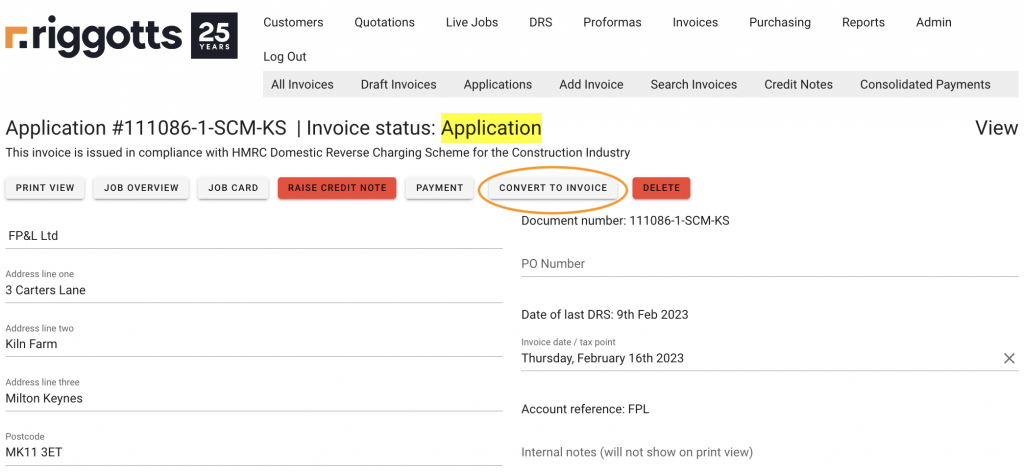
Upon the customer confirming the application, you can convert this to an invoice by clicking ‘Convert To invoice.’
To access it, click on the application action button ‘View.’
You will see the button ‘Convert To Invoice between ‘Payment’ and ‘Delete.’
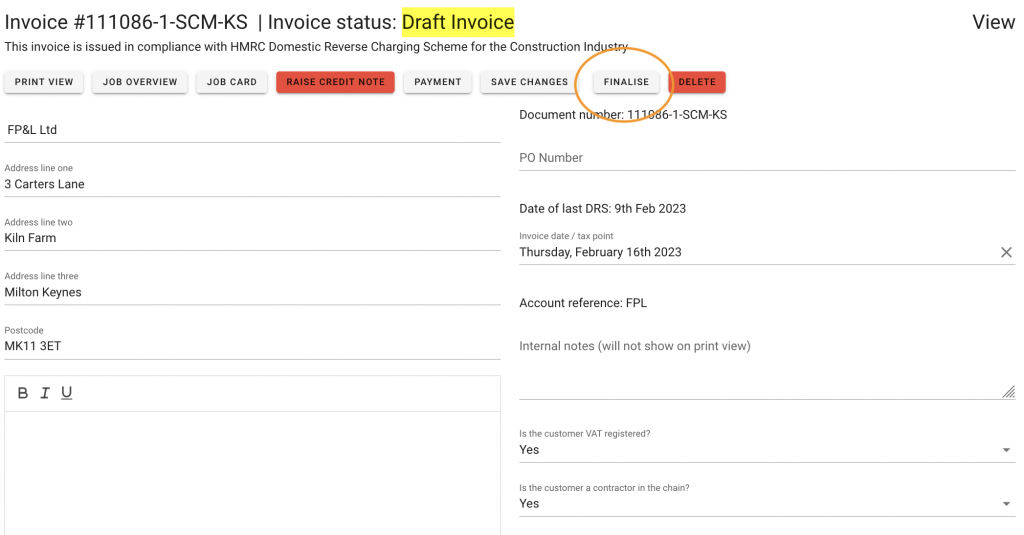
When the ‘Convert To Invoice’ button is clicked, the status changes to ‘Draft invoice’, and the ‘Finalise’ button appears to finalise and send to Sage.
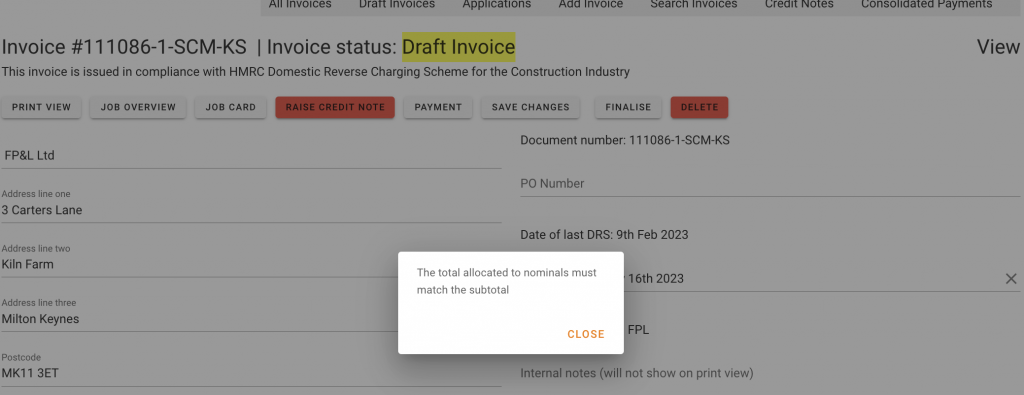
You will see this message if you click ‘Finalise’ before allocating the job nominals.
Once the correct value has been allocated to the correct Nominal, click save. You will need to confirm by clicking PROCEED.
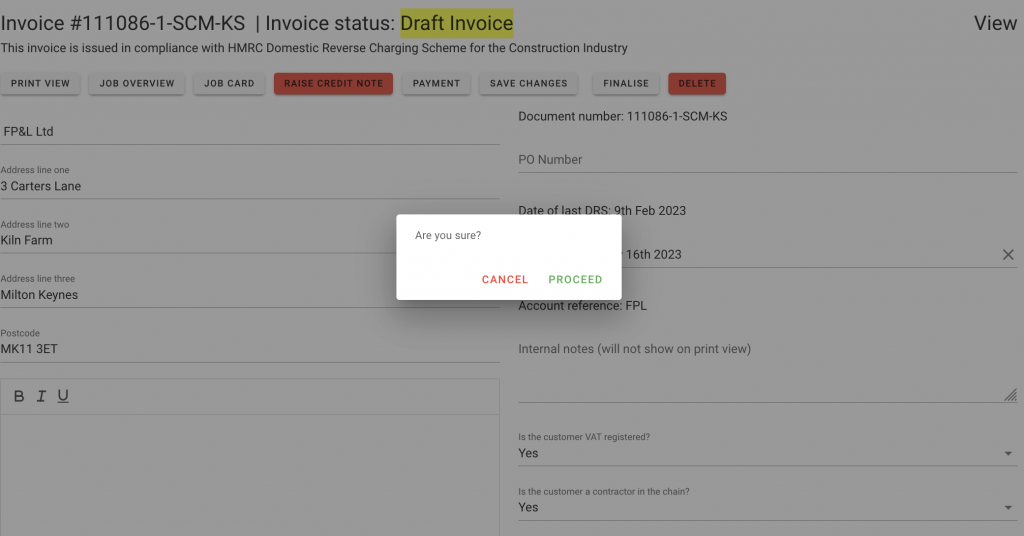
Upon clicking PROCEED, the IMS will send the invoice details to Sage and confirm.
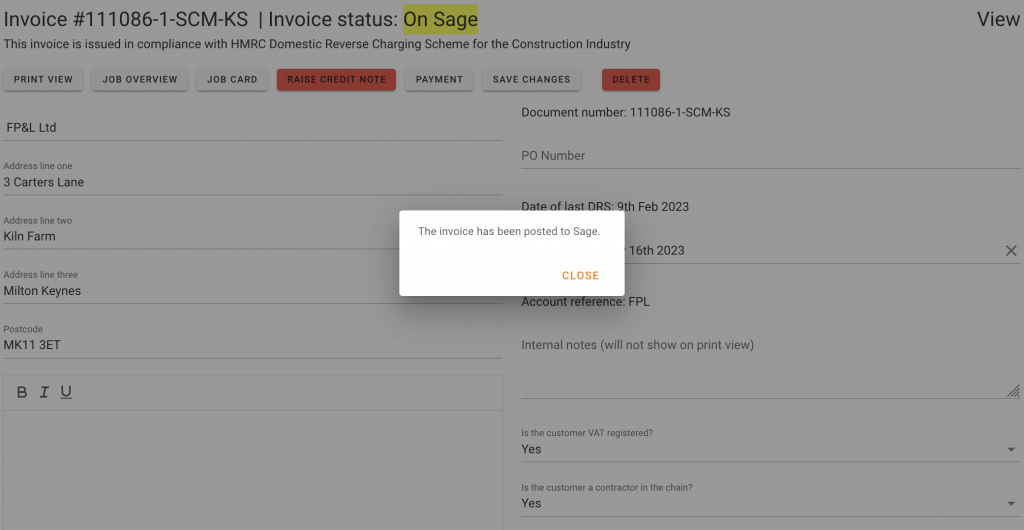
The Status has now changed to ‘On Sage’.

The job application has been removed from the ‘Application’ list and added to the ‘Invoice list.

To understand more about paying invoices, please click here.