Riggott IMS is a cloud-based smart app that allows your company to handle, control and automate all your business information. This uniquely designed system will strengthen; help you bring onboard new processes.
Quotations are the start of your communication with clients; invoicing and adding payments is the final part of the journey of the job.
Overview
To record a payment, you have two options:
- Enter a payment from the customer profile
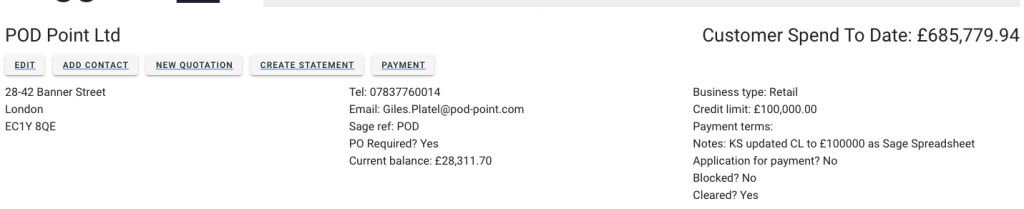
- Go to the Customer, and you will see the ‘Payment’ button, payment. Click on this, and you will see a list of outstanding invoices. Click on one, and you will be taken to the payment screen.
- In the payment screen, you will see two tabs Add Payment (which shows when you first go to the screen) and details ( which shows all the detail for the invoice).
- Go to the Customer, and you will see the ‘Payment’ button, payment. Click on this, and you will see a list of outstanding invoices. Click on one, and you will be taken to the payment screen.
- Enter a payment directly from the invoice.
- From the invoices page, click on the invoice you wish to add the payment for, and then you will see the ‘Payment’ button next to the red Credit Note button, click on this, and you will be taken to the payment screen.
- In the payment screen, you can see the history for the invoice, if any – i.e. Payments made, retentions added and any payment notes. You can add a new payment, a new retention or a new note. Or all three at once.
- From the invoices page, click on the invoice you wish to add the payment for, and then you will see the ‘Payment’ button next to the red Credit Note button, click on this, and you will be taken to the payment screen.

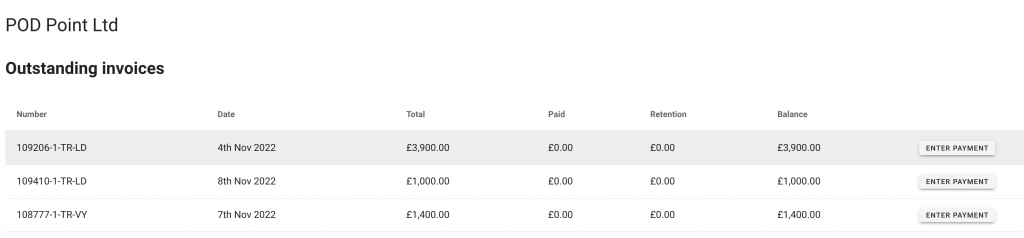
You will be shown a list of outstanding payments for that customer by clicking on the Payment’ button.
Enter payment and retention
You will then see the Enter payment details screen and record of payment history.
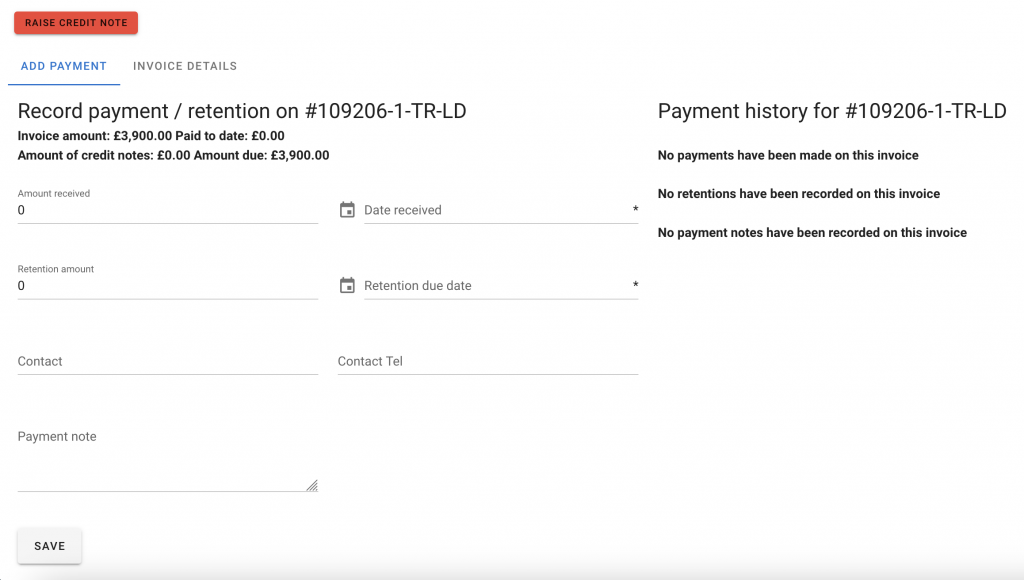
When you enter the payment amount, any balance will automatically show as retention. i.e. Outstanding amount is £1200; you enter a payment of £1000, the retention field will populate with £200. You need to select the payment date and the retention date.
If you want to delete the retention, that is fine, you can set this to 0 and save the payment.
You can also add Payment notes.
Invoices marked as paid.
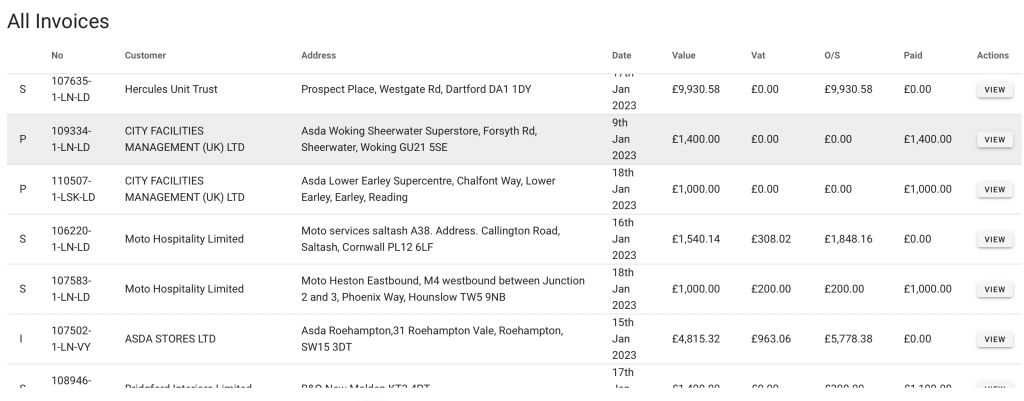
The current invoices value, VAT amount, outstanding value, and paid values with a link to view the invoice and payment details can be seen on the invoices dashboard.
Details to be added.
Overpayments
You cannot make an overpayment to any specific invoice.
If the payment value you enter exceeds the amount outstanding, you will see this message.
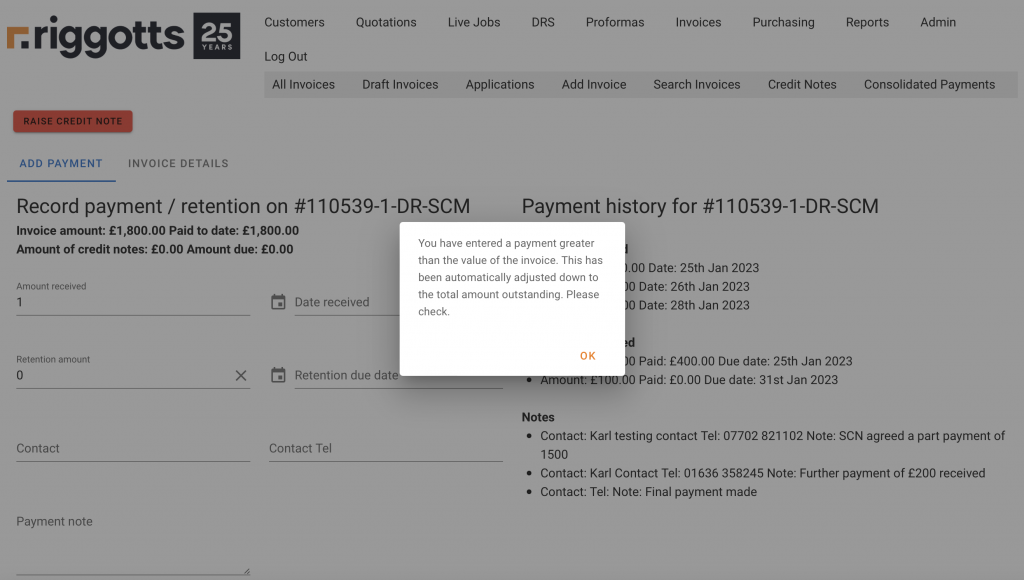
Please click OK, open the relevant outstanding invoice, allocate the remaining payment balance to that invoice, and save.
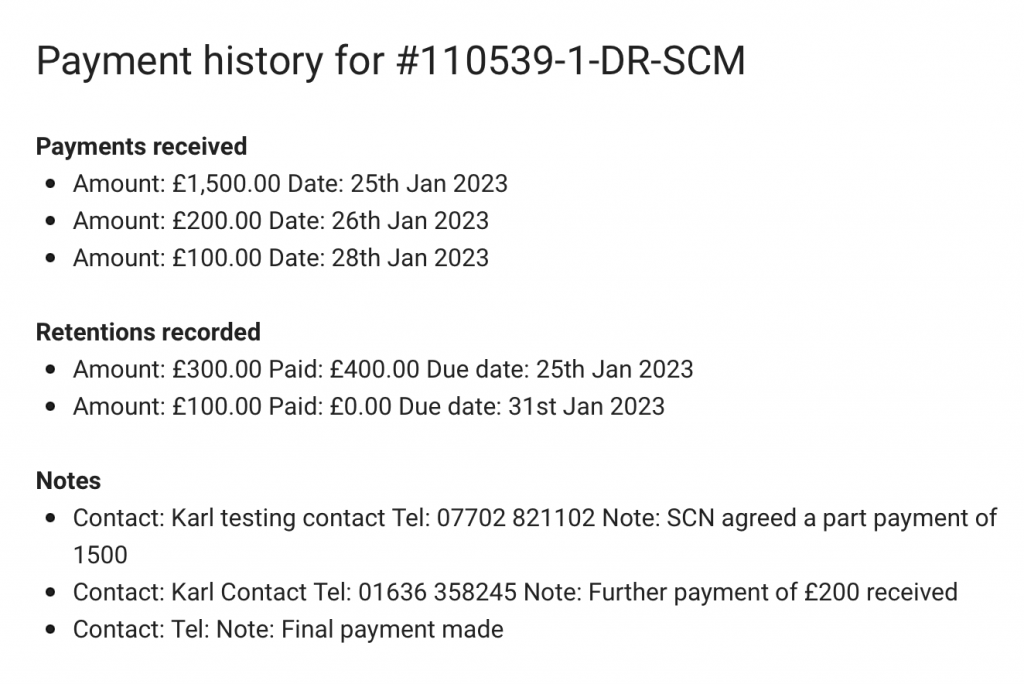
Payment History
To view payment history, click the invoice view button from the invoices dashboard or the customer dashboard; the payment button will be on the right; click to view the payment history to date.